

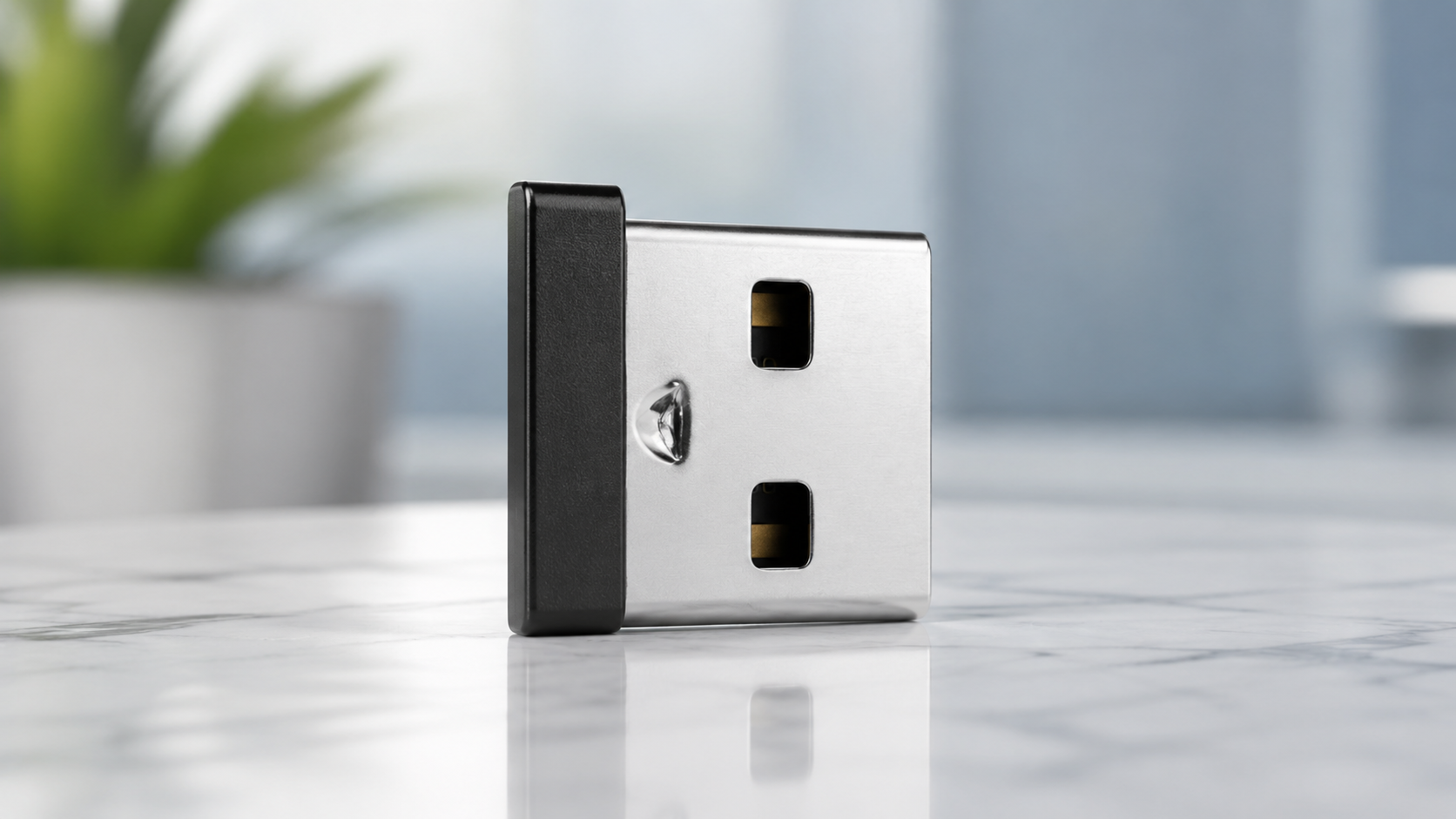
If you just unboxed a new Logitech mouse or keyboard, or you are trying to figure out why your old wireless setup suddenly stopped responding, chances are you have run into the tiny USB dongle known as the Logitech Unifying Receiver. It looks unassuming, barely bigger than your thumbnail, yet it quietly manages the connection between your computer and up to six wireless devices at once.
This guide walks you through everything you need to know about the Logitech Unifying Receiver, from what it actually does to how you set it up, pair new devices, fix common connection problems, and decide whether it is still the right choice compared to newer options like Logi Bolt. Whether you are setting one up for the first time or trying to rescue a mouse that will not connect, you will find practical answers here.
What Is a Logitech Unifying Receiver
A Logitech Unifying Receiver is a small USB dongle that creates a wireless connection between your computer and compatible Logitech peripherals. Instead of plugging in a separate receiver for your mouse and another for your keyboard, one Unifying Receiver can manage up to six devices at the same time.
The technology runs on a 2.4 GHz radio connection, similar to what many cordless devices use, and it is built to stay in your laptop or desktop permanently. It is small enough that most people forget it is even there, which is exactly the point. Logitech designed it to be a set it and forget it accessory.
You can recognize a Unifying compatible device by the small orange logo shaped like a six pointed star, usually printed on the packaging or on the bottom of the mouse or keyboard itself. This distinguishes it from a standard Logitech Nano receiver, which looks almost identical but only pairs with a single device rather than supporting multiple ones through the Unifying software.
Why People Still Rely on It
Even with Bluetooth built into nearly every modern laptop, the Unifying Receiver has stuck around for good reasons. It solves a few very specific annoyances that Bluetooth does not always handle well.
One port, several devices. Instead of using up multiple USB slots or dealing with Bluetooth pairing menus for each accessory, one receiver quietly runs your mouse, keyboard, and other supported peripherals together.
Consistent performance. A 2.4 GHz Unifying connection tends to have less lag and fewer dropouts than Bluetooth in crowded wireless environments, such as a busy office with dozens of other signals competing for bandwidth.
Simple device swaps. If you use the same mouse and keyboard across a work laptop and a personal one, an extra receiver lets you switch between computers without re pairing every time.
Painless replacements. Lost the receiver that came with your mouse? You do not need to buy an entirely new mouse. A standalone replacement receiver, paired through the Logi Options Plus software, gets you back up and running in minutes.
What You Need Before You Start
Before diving into setup, it helps to have a few things ready so you are not stopping halfway through the process.
- A free USB A port on your computer
- A Unifying compatible mouse, keyboard, or combo (check for the orange logo)
- An internet connection to download the pairing software
- A few minutes of uninterrupted time
That is really all it takes. There is no need for special drivers on most modern systems, since Windows and macOS both recognize the receiver automatically once it is plugged in.
Setting Up Your Unifying Receiver Step by Step
Getting a Unifying Receiver running for the first time is simple, even if you have never dealt with wireless peripherals before.
Step 1: Plug In the Receiver
Insert the receiver into any available USB A port. Most operating systems install the necessary drivers automatically within a few seconds. You will not usually see a popup or notification, which is normal.
Step 2: Download Logi Options Plus
Logitech’s current software for managing Unifying devices is called Logi Options Plus. The older standalone Unifying software has been retired and is no longer maintained, so Logi Options Plus is the tool you want. Download it directly from Logitech’s official website and install it like any other application.
Step 3: Open the App and Add a Device
Once installed, open Logi Options Plus and look for an option labeled something like Add Devices or Unifying Receiver. Turn on your mouse or keyboard using its power switch, and the software should detect it within a few seconds.
Step 4: Confirm the Pairing
Follow the on screen prompts to confirm the connection. This usually just means clicking a button once your device shows up in the list. After that, your mouse or keyboard is ready to use immediately.
Step 5: Repeat for Additional Devices
If you have more than one Unifying compatible accessory, you can repeat the same process to add each one to the same receiver, up to a total of six devices.
How to Pair a Keyboard or Mouse to the Receiver

Sometimes you just need to pair a single new device without going through a full setup from scratch. Here is the short version.
- Open Logi Options Plus on your computer.
- Select Add Devices.
- Turn on the mouse or keyboard by flipping its power switch.
- Wait for the device to appear on screen, then click to confirm.
Within seconds, the device should respond and be ready for everyday use. If it does not appear right away, try moving the device closer to the receiver, since obstacles or distance can occasionally slow down detection.
Connecting Multiple Devices to One Receiver
One of the biggest advantages of Unifying technology is that a single receiver can host up to six different devices. This is especially useful if you work across a keyboard, a mouse, and maybe a trackball or a presenter remote, all without needing extra USB ports.
To add more devices, simply repeat the same pairing steps inside Logi Options Plus. Each new device gets its own connection profile stored on the receiver, so once paired, they all work independently without interfering with one another.
If you ever want to remove a device, the software also lets you unpair it, which frees up space for a different accessory if you are managing a full set of six.
Unifying Receiver Compared to Logi Bolt and Bluetooth
Choosing the right wireless technology depends on what you actually need. Here is a straightforward comparison to help you decide.
| Feature | Unifying Receiver | Logi Bolt | Bluetooth |
|---|---|---|---|
| Devices per receiver | Up to 6 | Up to 6 | Depends on system, usually fewer stable pairs |
| Best for | Everyday home or office use | Business and secure environments | Devices without a spare USB port |
| Security | Standard wireless encryption | Enterprise grade, Bluetooth Low Energy security | Varies by device and OS |
| Range and reliability | Strong, minimal interference | Stronger in congested wireless spaces | Can vary in busy areas |
| Setup complexity | Very simple with Logi Options Plus | Similar, aimed at IT deployment | Built into most modern devices |
If you are an everyday user who just wants a dependable connection for a mouse and keyboard at home, the Unifying Receiver remains an excellent, budget friendly option. If you manage many devices in a business setting where security is a bigger concern, Logi Bolt is worth considering instead. Bluetooth still makes sense if you simply do not want to use a USB port at all, though it can be less consistent in offices with a lot of wireless traffic.
Common Problems and How to Fix Them
Even reliable hardware runs into hiccups occasionally. Here are the most common issues people run into with a Unifying Receiver and how to resolve them.
Receiver Not Detected
If your computer does not seem to notice the receiver at all, try removing it and plugging it into a different USB port, ideally one directly on the computer rather than through a hub or dock. Restarting your computer after reinserting the receiver often resolves detection issues as well.
Device Won’t Pair
Double check that your mouse or keyboard actually carries the orange Unifying logo. Not every Logitech device supports Unifying pairing, and using a Nano receiver by mistake will cause confusion since it looks nearly identical.
If compatibility is not the issue, make sure Logi Options Plus is fully updated, then try removing the device from the software and re adding it as if pairing for the first time.
Intermittent Disconnects or Lag
This usually points to interference. Try moving the receiver away from other wireless devices, USB 3.0 ports, or metal surfaces, all of which can weaken the 2.4 GHz signal. An extension cable that raises the receiver slightly off a crowded desk can also help.
Lost or Broken Receiver
The good news is that losing a receiver does not mean losing your mouse or keyboard. You can buy a standalone replacement receiver and re pair your existing devices to it using Logi Options Plus, without needing to purchase new hardware.
Is the Unifying Receiver Safe to Use
Security is a reasonable question to ask about any wireless accessory, especially one that stays plugged in permanently. Several years ago, security researchers identified a vulnerability nicknamed MouseJack that affected some wireless receivers, including certain Unifying models, allowing an attacker with specialized equipment and close physical proximity to potentially inject keystrokes.
Logitech responded by releasing firmware updates to address the vulnerability, and current devices sold today include these protections. For most home and office users, keeping your Logi Options Plus software updated is enough to stay protected, since firmware updates are typically delivered through that application.
If you work in an environment where security is an especially high priority, such as handling sensitive data or operating in a shared office space, Logi Bolt offers stronger, business grade encryption designed specifically for those situations.
Buying a Replacement Receiver
If your original receiver is lost, damaged, or simply missing from a used device you picked up secondhand, you have a few reliable options for buying a replacement.
Logitech sells standalone Unifying Receivers directly through its own website, which is the safest way to guarantee compatibility and authenticity. Major retailers also commonly stock them, and it is worth comparing prices across a few before buying, since the receiver itself is a small, relatively inexpensive accessory.
When shopping, look specifically for listings that mention the Unifying logo or explicitly state compatibility with Unifying devices. Some sellers list similar looking Nano receivers, which will not work the same way, so reading the product description carefully saves you a return trip later.
Conclusion
The Logitech Unifying Receiver has remained a practical, no fuss solution for years because it solves a real problem well. One tiny dongle connects up to six wireless devices, setup takes only a few minutes with Logi Options Plus, and even losing the receiver is not a major setback since replacements are inexpensive and easy to re pair.
Whether you are setting one up for the first time, adding another device to an existing receiver, or troubleshooting a stubborn connection, the steps in this guide should get you back to a smooth, wireless experience. And if your needs eventually shift toward higher security or managing many devices across an organization, Logi Bolt is there as a natural next step.
Frequently Asked Questions
How do I know if my Logitech device works with a Unifying Receiver?
Look for the small orange Unifying logo on the device or its original packaging. If it is missing, the device likely uses a different connection method, such as a Nano receiver or Bluetooth.
Can I use one receiver for both my mouse and keyboard?
Yes. A single Unifying Receiver supports up to six compatible devices at once, so a mouse and keyboard can easily share the same receiver.
What software do I need to pair devices?
Logi Options Plus is the current software used to pair, manage, and update Unifying devices. The older standalone Unifying software is no longer supported.
My receiver is not responding. What should I try first?
Unplug it and try a different USB port directly on your computer, then restart. If that does not help, reinstall or update Logi Options Plus and attempt the pairing process again.
Is the Unifying Receiver still a good choice compared to Bluetooth or Logi Bolt?
For everyday home and office use, it remains a simple, reliable choice. If you need stronger enterprise level security or manage devices across many computers, Logi Bolt is worth considering instead.
